Notebook API
Notebook API 允許 Visual Studio Code 擴充套件將檔案作為 Notebook 開啟,執行 Notebook 程式碼單元格,並以各種豐富且互動式格式渲染 Notebook 輸出。您可能知道像 Jupyter Notebook 或 Google Colab 這樣的流行 Notebook 介面——Notebook API 允許在 Visual Studio Code 中提供類似的體驗。
Notebook 的組成部分
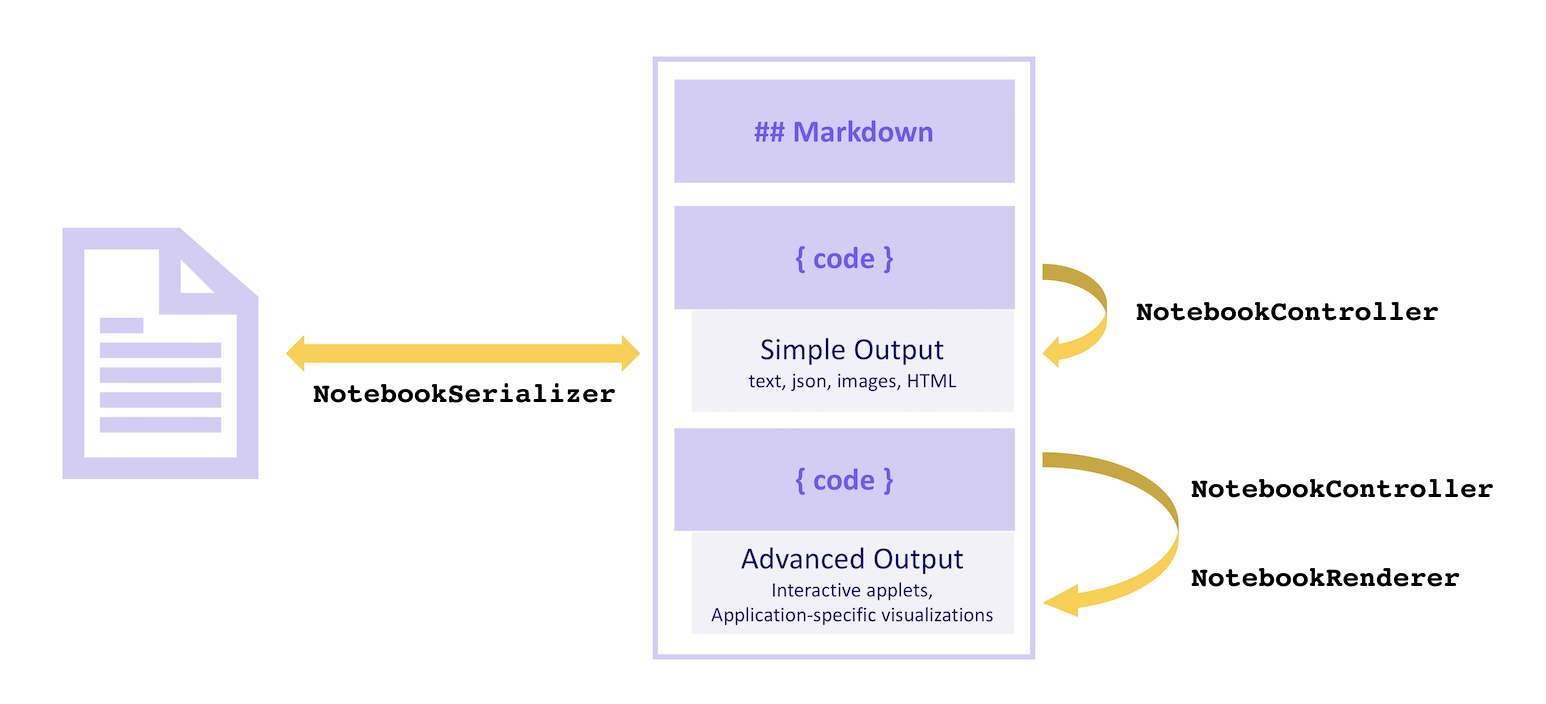
Notebook 由一系列單元格及其輸出組成。Notebook 的單元格可以是 **Markdown 單元格** 或 **程式碼單元格**,並在 VS Code 核心中渲染。輸出可以有多種格式。一些輸出格式,例如純文字、JSON、影像和 HTML,由 VS Code 核心渲染。其他格式,例如特定於應用程式的資料或互動式小程式,則由擴充套件渲染。
Notebook 中的單元格由 NotebookSerializer 讀取和寫入檔案系統,該物件負責從檔案系統讀取資料並將其轉換為單元格描述,以及將 Notebook 的修改持久化迴文件系統。Notebook 的**程式碼單元格**可以由 NotebookController 執行,後者接收單元格的內容並從中生成零個或多個輸出,格式從純文字到格式化文件或互動式小程式不等。特定於應用程式的輸出格式和互動式小程式輸出由 NotebookRenderer 渲染。
視覺上
Serializer
NotebookSerializer 負責將 Notebook 的序列化位元組反序列化為 NotebookData,其中包含 Markdown 和程式碼單元格列表。它也負責相反的轉換:獲取 NotebookData 並將其轉換為要儲存的序列化位元組。
示例
- JSON Notebook Serializer:簡單的示例 Notebook,它接受 JSON 輸入,並在自定義
NotebookRenderer中輸出格式化的 JSON。 - Markdown Serializer:將 Markdown 檔案作為 Notebook 開啟和編輯。
示例
在此示例中,我們構建了一個簡化的 Notebook 提供程式擴充套件,用於在 Jupyter Notebook 格式的檔案中檢視,該檔案具有 .notebook 副檔名(而不是其傳統的 .ipynb 副檔名)。
Notebook 序列化器在 package.json 的 contributes.notebooks 部分中宣告,如下所示:
{
    ...
    "contributes": {
        ...
        "notebooks": [
            {
                "type": "my-notebook",
                "displayName": "My Notebook",
                "selector": [
                    {
                        "filenamePattern": "*.notebook"
                    }
                ]
            }
        ]
    }
}
然後,在擴充套件的啟用事件中註冊 Notebook 序列化器:
import { TextDecoder, TextEncoder } from 'util';
import * as vscode from 'vscode';

export function activate(context: vscode.ExtensionContext) {
  context.subscriptions.push(
    vscode.workspace.registerNotebookSerializer('my-notebook', new SampleSerializer())
  );
}

interface RawNotebook {
  cells: RawNotebookCell[];
}

interface RawNotebookCell {
  source: string[];
  cell_type: 'code' | 'markdown';
}

class SampleSerializer implements vscode.NotebookSerializer {
  async deserializeNotebook(
    content: Uint8Array,
    _token: vscode.CancellationToken
  ): Promise<vscode.NotebookData> {
    var contents = new TextDecoder().decode(content);

    let raw: RawNotebookCell[];
    try {
      raw = (<RawNotebook>JSON.parse(contents)).cells;
    } catch {
      raw = [];
    }

    const cells = raw.map(
      item =>
        new vscode.NotebookCellData(
          item.cell_type === 'code'
            ? vscode.NotebookCellKind.Code
            : vscode.NotebookCellKind.Markup,
          item.source.join('\n'),
          item.cell_type === 'code' ? 'python' : 'markdown'
        )
    );

    return new vscode.NotebookData(cells);
  }

  async serializeNotebook(
    data: vscode.NotebookData,
    _token: vscode.CancellationToken
  ): Promise<Uint8Array> {
    let contents: RawNotebookCell[] = [];

    for (const cell of data.cells) {
      contents.push({
        cell_type: cell.kind === vscode.NotebookCellKind.Code ? 'code' : 'markdown',
        source: cell.value.split(/\r?\n/g)
      });
    }

    return new TextEncoder().encode(JSON.stringify(contents));
  }
}
現在嘗試執行您的擴充套件並開啟使用 .notebook 副檔名儲存的 Jupyter Notebook 格式檔案:
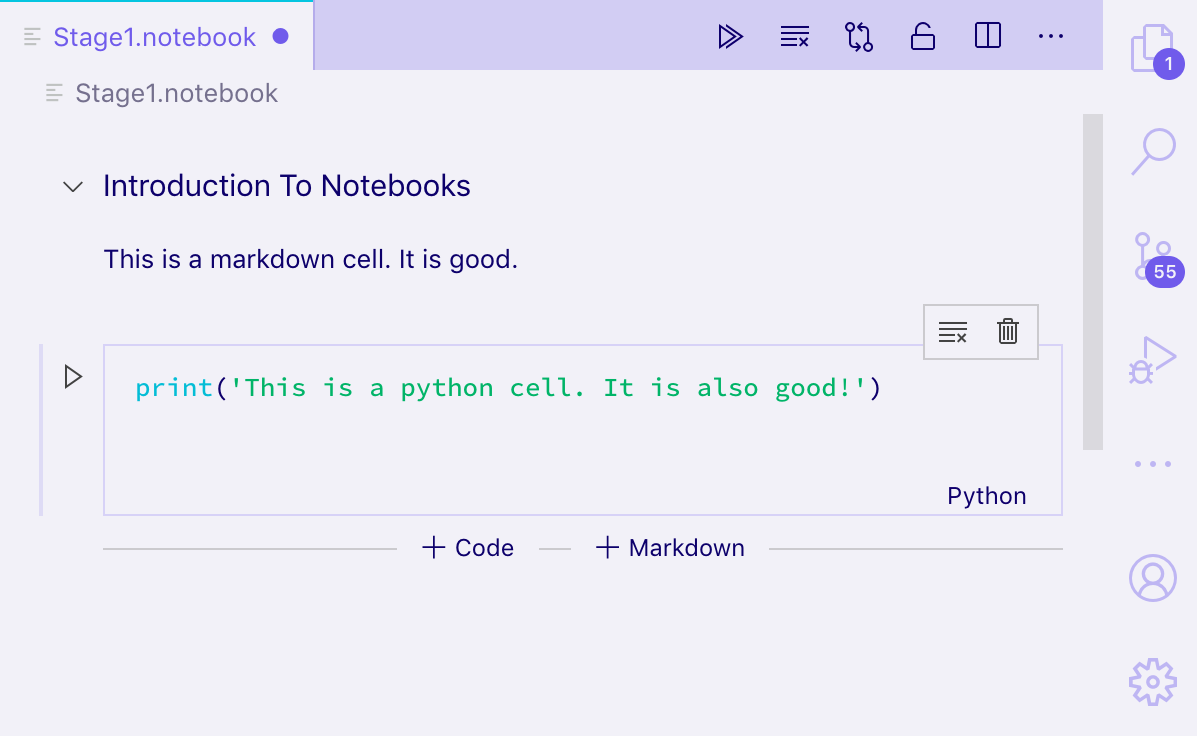
您應該能夠開啟 Jupyter 格式的 Notebook,並將它們的單元格視為純文字和渲染的 Markdown,還可以編輯單元格。但是,輸出不會持久化到磁碟;要儲存輸出,您還需要序列化和反序列化 NotebookData 中的單元格輸出。
要執行單元格,您需要實現一個 NotebookController。
Controller
NotebookController 負責接收一個**程式碼單元格**並執行程式碼以生成零個或多個輸出。
控制器透過在建立控制器時設定 NotebookController#notebookType 屬性,直接與 Notebook 序列化器和 Notebook 型別相關聯。然後,在擴充套件啟用時,透過將控制器推送到擴充套件訂閱中,全域性註冊該控制器。
export function activate(context: vscode.ExtensionContext) {
  context.subscriptions.push(new Controller());
}

class Controller {
  readonly controllerId = 'my-notebook-controller-id';
  readonly notebookType = 'my-notebook';
  readonly label = 'My Notebook';
  readonly supportedLanguages = ['python'];

  private readonly _controller: vscode.NotebookController;
  private _executionOrder = 0;

  constructor() {
    this._controller = vscode.notebooks.createNotebookController(
      this.controllerId,
      this.notebookType,
      this.label
    );

    this._controller.supportedLanguages = this.supportedLanguages;
    this._controller.supportsExecutionOrder = true;
    this._controller.executeHandler = this._execute.bind(this);
  }

  private _execute(
    cells: vscode.NotebookCell[],
    _notebook: vscode.NotebookDocument,
    _controller: vscode.NotebookController
  ): void {
    for (let cell of cells) {
      this._doExecution(cell);
    }
  }

  private async _doExecution(cell: vscode.NotebookCell): Promise<void> {
    const execution = this._controller.createNotebookCellExecution(cell);
    execution.executionOrder = ++this._executionOrder;
    execution.start(Date.now()); // Keep track of elapsed time to execute cell.

    /* Do some execution here; not implemented */

    execution.replaceOutput([
      new vscode.NotebookCellOutput([
        vscode.NotebookCellOutputItem.text('Dummy output text!')
      ])
    ]);
    execution.end(true, Date.now());
  }
}
如果您要將提供 NotebookController 的擴充套件與序列化器分開發布,請在 package.json 的 keywords 中新增一個條目,例如 notebookKernel<ViewTypeUpperCamelCased>。例如,如果您釋出了一個 github-issues Notebook 型別的備用核心,則應將 notebookKernelGithubIssues 關鍵字新增到您的擴充套件中。這可以提高在 Visual Studio Code 中開啟 <ViewTypeUpperCamelCased> 型別 Notebook 時擴充套件的可發現性。
示例
- GitHub Issues Notebook:用於執行 GitHub Issues 查詢的控制器。
- REST Book:用於執行 REST 查詢的控制器。
- Regexper notebooks:用於視覺化正則表示式的控制器。
輸出型別
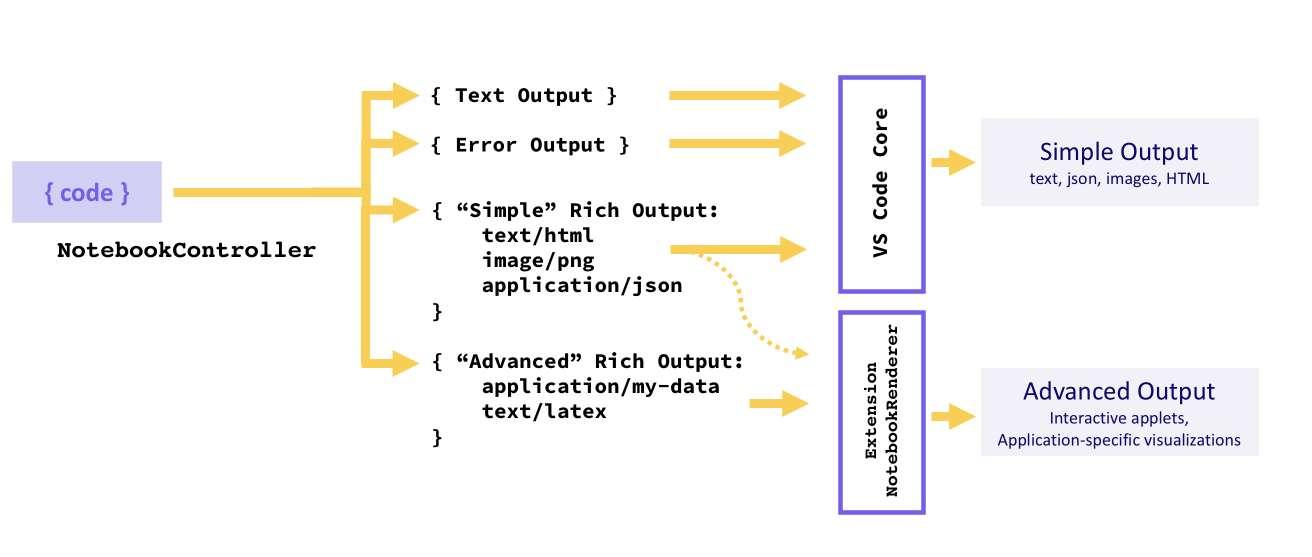
輸出必須是以下三種格式之一:文字輸出、錯誤輸出或富文字輸出。核心可以為單元格的單個執行提供多個輸出,在這種情況下,它們將顯示為列表。
文字輸出、錯誤輸出或富文字輸出的“簡單”變體(HTML、Markdown、JSON 等)由 VS Code 核心渲染,而特定於應用程式的富文字輸出型別由 NotebookRenderer 渲染。擴充套件也可以選擇自行渲染“簡單”富文字輸出,例如為 Markdown 輸出新增 LaTeX 支援。
Text Output
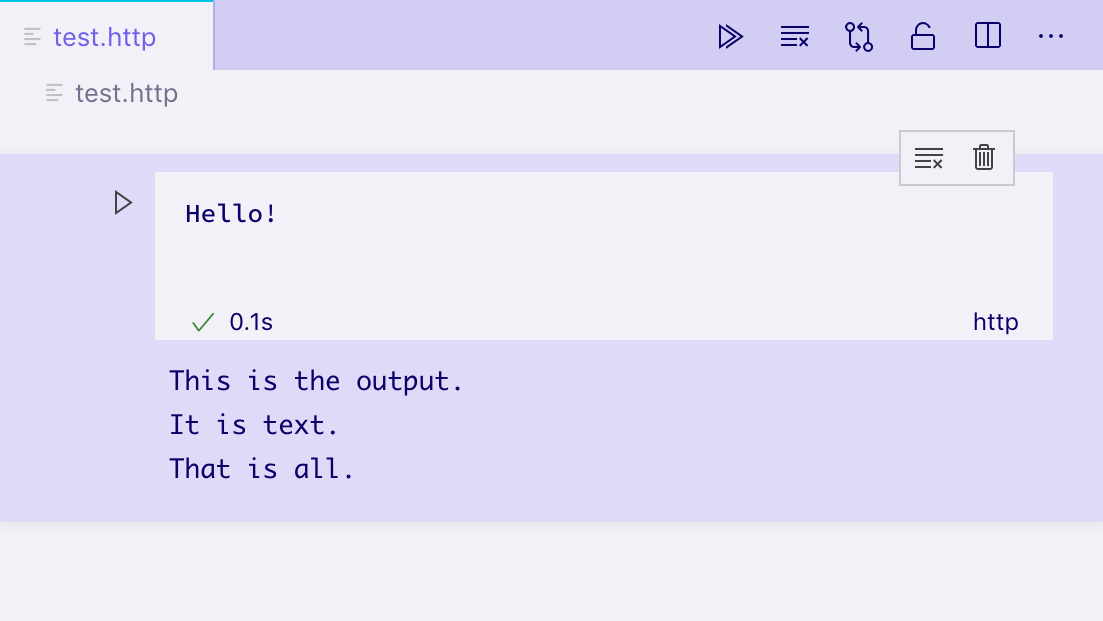
文字輸出是最簡單的輸出格式,其工作方式與您可能熟悉的許多 REPL 類似。它們僅包含一個 text 欄位,該欄位將在單元格的輸出元素中渲染為純文字。
vscode.NotebookCellOutputItem.text('This is the output...');
Error Output
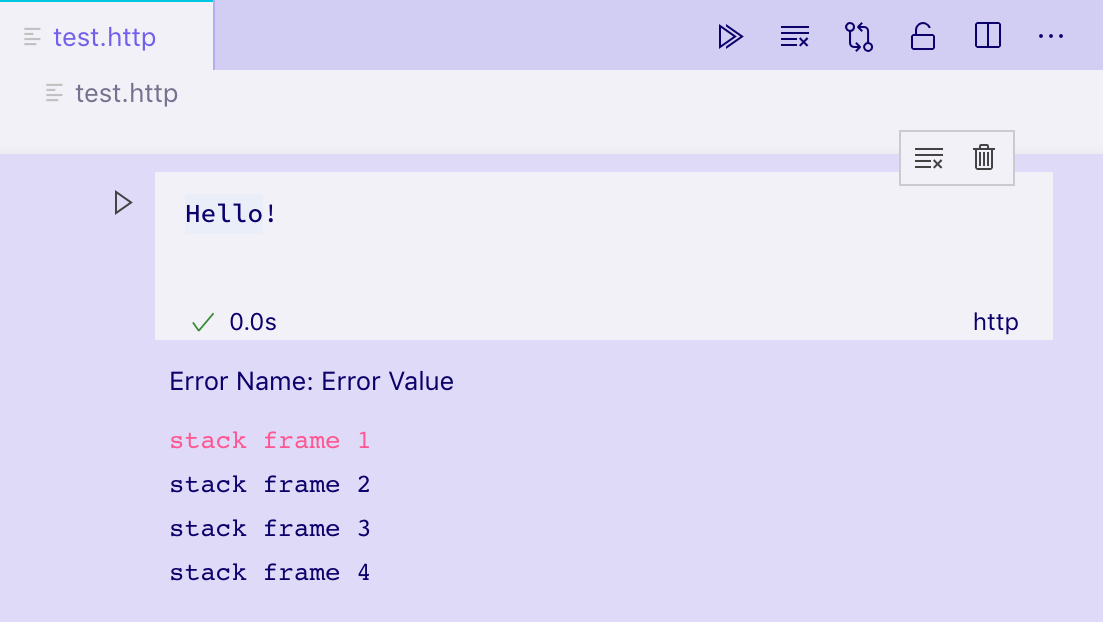
錯誤輸出有助於以一致且易於理解的方式顯示執行時錯誤。它們支援標準的 Error 物件。
try {
  /* Some code */
} catch (error) {
  vscode.NotebookCellOutputItem.error(error);
}
Rich Output
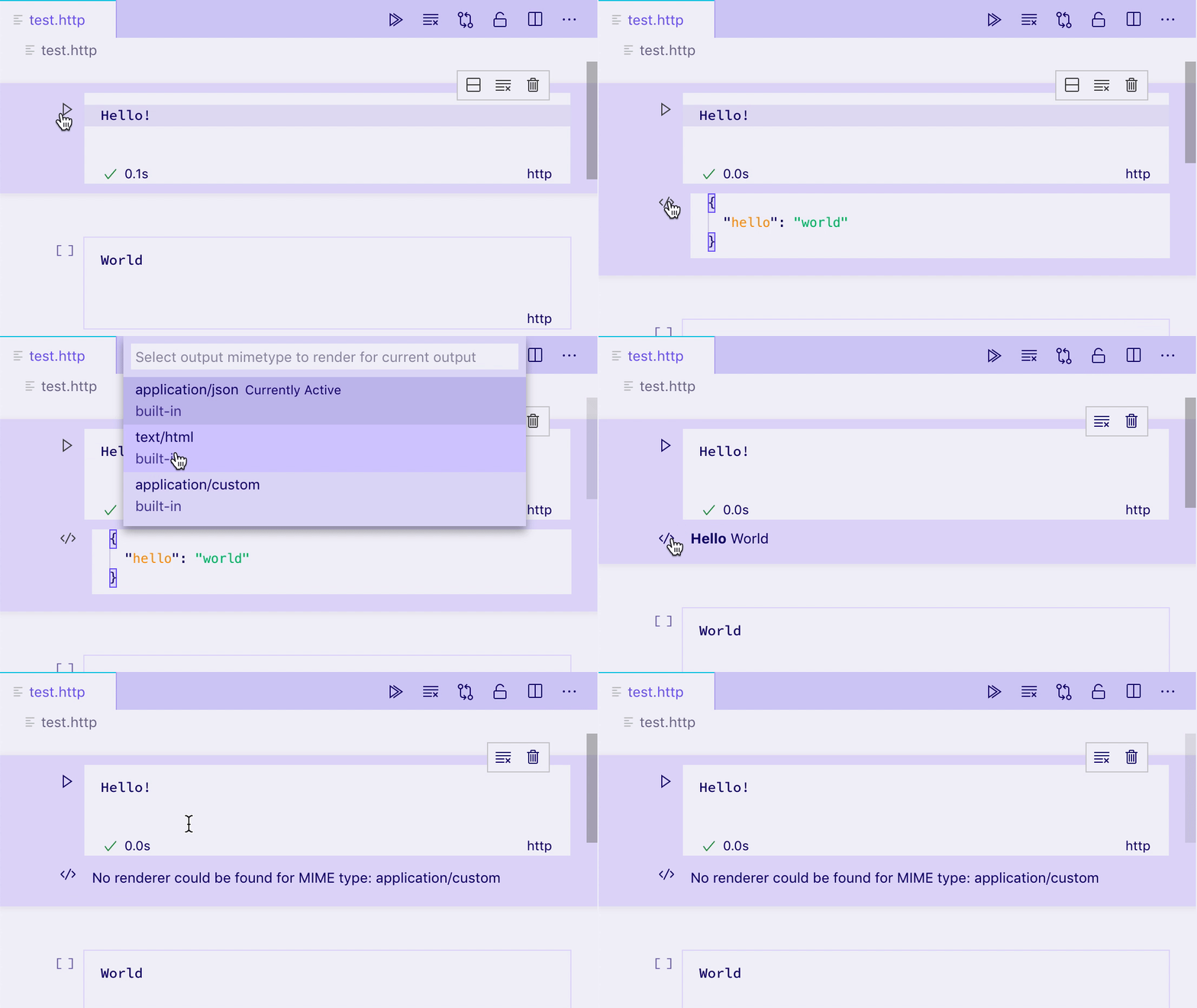
富文字輸出是顯示單元格輸出的最先進的形式。它們允許為輸出資料提供多種不同的表示形式,透過 mime 型別進行鍵控。例如,如果一個單元格輸出代表一個 GitHub Issue,核心可能會生成一個富文字輸出,其 data 欄位有幾個屬性:
- 一個包含 Issue 格式化檢視的
text/html欄位。 - 一個包含機器可讀檢視的
text/x-json欄位。 - 一個
application/github-issue欄位,NotebookRenderer可以使用它來建立 Issue 的完全互動式檢視。
在這種情況下,text/html 和 text/x-json 檢視將由 VS Code 本機渲染,但如果未註冊到該 mime 型別的 NotebookRenderer,application/github-issue 檢視將顯示錯誤。
execution.replaceOutput([new vscode.NotebookCellOutput([
                            vscode.NotebookCellOutputItem.text('<b>Hello</b> World', 'text/html'),
                            vscode.NotebookCellOutputItem.json({ hello: 'world' }),
                            vscode.NotebookCellOutputItem.json({ custom-data-for-custom-renderer: 'data' }, 'application/custom'),
                        ])]);
預設情況下,VS Code 可以渲染以下 mime 型別:
- application/javascript
- text/html
- image/svg+xml
- text/markdown
- image/png
- image/jpeg
- text/plain
VS Code 將這些 mime 型別渲染為內建編輯器中的程式碼:
- text/x-json
- text/x-javascript
- text/x-html
- text/x-rust
- ... text/x-LANGUAGE_ID,適用於任何其他內建或已安裝的語言。
此 Notebook 使用內建編輯器顯示一些 Rust 程式碼: 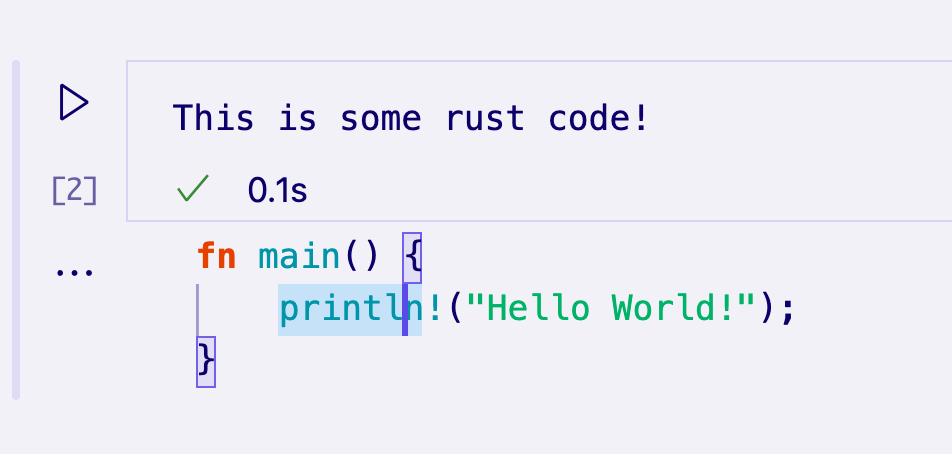
要渲染替代的 mime 型別,必須為該 mime 型別註冊一個 NotebookRenderer。
Notebook Renderer
Notebook renderer 負責獲取特定 mime 型別的輸出資料,並提供該資料的渲染檢視。由輸出單元格共享的渲染器可以在這些單元格之間維護全域性狀態。渲染檢視的複雜性可以從簡單的靜態 HTML 到動態的完全互動式小程式不等。在本節中,我們將探討渲染代表 GitHub Issue 的輸出的各種技術。
您可以使用我們 Yeoman 生成器中的樣板程式碼快速入門。為此,請先安裝 Yeoman 和 VS Code Generators:
npm install -g yo generator-code
然後,執行 yo code 並選擇 New Notebook Renderer (TypeScript)。
如果您不使用此模板,您只需確保在擴充套件的 package.json 中將 notebookRenderer 新增到 keywords 中,並在副檔名或描述中提及您的 mime 型別,以便使用者可以找到您的渲染器。
一個簡單的、非互動式渲染器
渲染器透過貢獻到擴充套件的 package.json 的 contributes.notebookRenderer 屬性來為一組 mime 型別宣告。此渲染器將處理 ms-vscode.github-issue-notebook/github-issue 格式的輸入,我們假設某個已安裝的控制器能夠提供該格式。
{
  "activationEvents": ["...."],
  "contributes": {
    ...
    "notebookRenderer": [
      {
        "id": "github-issue-renderer",
        "displayName": "GitHub Issue Renderer",
        "entrypoint": "./out/renderer.js",
        "mimeTypes": [
          "ms-vscode.github-issue-notebook/github-issue"
        ]
      }
    ]
  }
}
輸出渲染器始終在單個 iframe 中渲染,與 VS Code 的其餘 UI 分開,以確保它們不會意外干擾或導致 VS Code 變慢。此貢獻指向一個“入口點”指令碼,該指令碼在任何輸出需要渲染之前載入到 Notebook 的 iframe 中。您的入口點必須是單個檔案,您可以自己編寫,也可以使用 Webpack、Rollup 或 Parcel 等打包器來建立。
載入時,您的入口點指令碼應從 vscode-notebook-renderer 匯出 ActivationFunction,以便在 VS Code 準備好渲染您的渲染器時渲染您的 UI。例如,這將把所有 GitHub Issue 資料作為 JSON 放入單元格輸出:
import type { ActivationFunction } from 'vscode-notebook-renderer';

export const activate: ActivationFunction = context => ({
  renderOutputItem(data, element) {
    element.innerText = JSON.stringify(data.json());
  }
});
您可以 在此處參考完整的 API 定義。如果您使用 TypeScript,可以安裝 @types/vscode-notebook-renderer,然後將 vscode-notebook-renderer 新增到 tsconfig.json 的 types 陣列中,以便在您的程式碼中可用這些型別。
要建立更豐富的內容,您可以手動建立 DOM 元素,或使用 Preact 等框架並將其渲染到輸出元素中,例如:
import type { ActivationFunction } from 'vscode-notebook-renderer';
import { h, render } from 'preact';

const Issue: FunctionComponent<{ issue: GithubIssue }> = ({ issue }) => (
  <div key={issue.number}>
    <h2>
      {issue.title}
      (<a href={`https://github.com/${issue.repo}/issues/${issue.number}`}>#{issue.number}</a>)
    </h2>
    <img src={issue.user.avatar_url} style={{ float: 'left', width: 32, borderRadius: '50%', marginRight: 20 }} />
    <i>@{issue.user.login}</i> Opened: <div style="margin-top: 10px">{issue.body}</div>
  </div>
);

const GithubIssues: FunctionComponent<{ issues: GithubIssue[]; }> = ({ issues }) => (
  <div>{issues.map(issue => <Issue key={issue.number} issue={issue} />)}</div>
);

export const activate: ActivationFunction = (context) => ({
    renderOutputItem(data, element) {
        render(<GithubIssues issues={data.json()} />, element);
    }
});
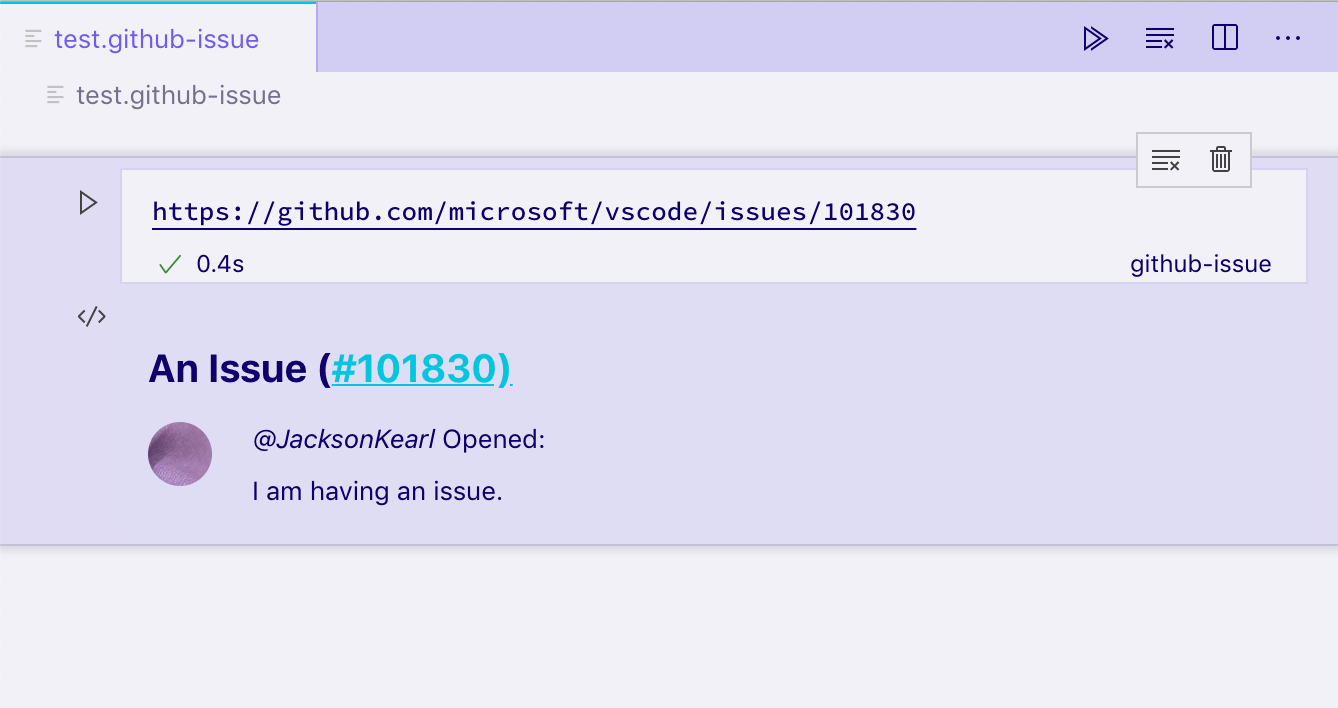
在帶有 ms-vscode.github-issue-notebook/github-issue 資料欄位的輸出單元格上執行此渲染器,會得到以下靜態 HTML 檢視:
如果您有容器外的元素或其他非同步程序,可以使用 disposeOutputItem 來銷燬它們。當輸出被清除、單元格被刪除以及在為現有單元格渲染新輸出之前,此事件將觸發。例如:
const intervals = new Map();

export const activate: ActivationFunction = (context) => ({
    renderOutputItem(data, element) {
        render(<GithubIssues issues={data.json()} />, element);

        intervals.set(data.mime, setInterval(() => {
            if(element.querySelector('h2')) {
                element.querySelector('h2')!.style.color = `hsl(${Math.random() * 360}, 100%, 50%)`;
            }
        }, 1000));
    },
    disposeOutputItem(id) {
        clearInterval(intervals.get(id));
        intervals.delete(id);
    }
});
請務必記住,Notebook 的所有輸出都在同一個 iframe 的不同元素中渲染。如果您使用 document.querySelector 等函式,請確保將其範圍限定在您感興趣的特定輸出,以避免與其他輸出發生衝突。在此示例中,我們使用 element.querySelector 來避免此問題。
互動式 Notebook(與控制器通訊)
假設我們想在單擊渲染輸出中的按鈕後新增檢視 Issue 評論的功能。假設一個控制器可以在 ms-vscode.github-issue-notebook/github-issue-with-comments mime 型別下提供 Issue 資料(包含評論),我們可能會嘗試預先載入所有評論並按如下方式實現:
const Issue: FunctionComponent<{ issue: GithubIssueWithComments }> = ({ issue }) => {
  const [showComments, setShowComments] = useState(false);

  return (
    <div key={issue.number}>
      <h2>
        {issue.title}
        (<a href={`https://github.com/${issue.repo}/issues/${issue.number}`}>#{issue.number}</a>)
      </h2>
      <img src={issue.user.avatar_url} style={{ float: 'left', width: 32, borderRadius: '50%', marginRight: 20 }} />
      <i>@{issue.user.login}</i> Opened: <div style="margin-top: 10px">{issue.body}</div>
      <button onClick={() => setShowComments(true)}>Show Comments</button>
      {showComments && issue.comments.map(comment => <div>{comment.text}</div>)}
    </div>
  );
};
這立即會引起一些問題。首先,我們在單擊按鈕之前就載入了所有 Issue 的完整評論資料。此外,我們還需要支援一個完全不同的 mime 型別,即使我們只想顯示更多資料。
相反,控制器可以透過包含一個預載入指令碼來為渲染器提供額外的功能,VS Code 也會將此指令碼載入到 iframe 中。此指令碼可以訪問全域性函式 postKernelMessage 和 onDidReceiveKernelMessage,可用於與控制器通訊。
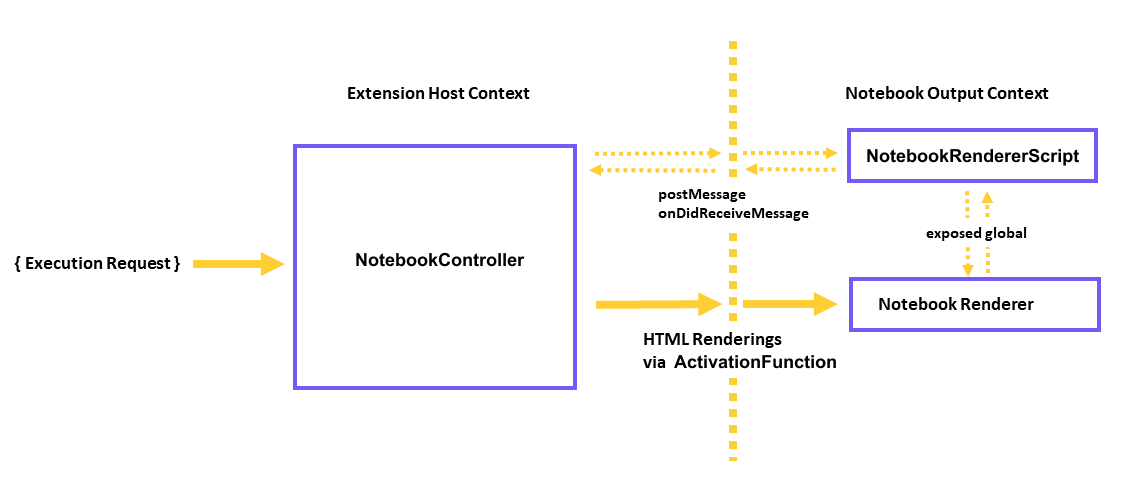
例如,您可以修改控制器 rendererScripts 來引用一個新檔案,在該檔案中建立到 Extension Host 的連線,併為渲染器公開一個全域性通訊指令碼。
在您的控制器中:
class Controller {
  // ...

  readonly rendererScriptId = 'my-renderer-script';

  constructor() {
    // ...

    this._controller.rendererScripts.push(
      new vscode.NotebookRendererScript(
        vscode.Uri.file(/* path to script */),
        rendererScriptId
      )
    );
  }
}
在 package.json 中將您的指令碼指定為渲染器的依賴項:
{
  "activationEvents": ["...."],
  "contributes": {
    ...
    "notebookRenderer": [
      {
        "id": "github-issue-renderer",
        "displayName": "GitHub Issue Renderer",
        "entrypoint": "./out/renderer.js",
        "mimeTypes": [...],
        "dependencies": [
            "my-renderer-script"
        ]
      }
    ]
  }
}
在您的指令碼檔案中,您可以宣告通訊函式以與控制器通訊:
import 'vscode-notebook-renderer/preload';

globalThis.githubIssueCommentProvider = {
  loadComments(issueId: string, callback: (comments: GithubComment[]) => void) {
    postKernelMessage({ command: 'comments', issueId });

    onDidReceiveKernelMessage(event => {
      if (event.data.type === 'comments' && event.data.issueId === issueId) {
        callback(event.data.comments);
      }
    });
  }
};
然後在渲染器中消費它。您需要確保檢查從控制器渲染指令碼公開的全域性變數是否可用,因為其他開發人員可能在其他 Notebook 和控制器中建立 GitHub Issue 輸出,而這些 Notebook 和控制器沒有實現 githubIssueCommentProvider。在這種情況下,只有當全域性變數可用時,我們才會顯示“**載入評論**”按鈕:
const canLoadComments = globalThis.githubIssueCommentProvider !== undefined;
const Issue: FunctionComponent<{ issue: GithubIssue }> = ({ issue }) => {
  const [comments, setComments] = useState([]);
  const loadComments = () =>
    globalThis.githubIssueCommentProvider.loadComments(issue.id, setComments);

  return (
    <div key={issue.number}>
      <h2>
        {issue.title}
        (<a href={`https://github.com/${issue.repo}/issues/${issue.number}`}>#{issue.number}</a>)
      </h2>
      <img src={issue.user.avatar_url} style={{ float: 'left', width: 32, borderRadius: '50%', marginRight: 20 }} />
      <i>@{issue.user.login}</i> Opened: <div style="margin-top: 10px">{issue.body}</div>
      {canLoadComments && <button onClick={loadComments}>Load Comments</button>}
      {comments.map(comment => <div>{comment.text}</div>)}
    </div>
  );
};
最後,我們想設定與控制器的通訊。當渲染器使用全域性函式 postKernelMessage 釋出訊息時,將呼叫 NotebookController.onDidReceiveMessage 方法。要實現此方法,請附加到 onDidReceiveMessage 以監聽訊息:
class Controller {
  // ...

  constructor() {
    // ...

    this._controller.onDidReceiveMessage(event => {
      if (event.message.command === 'comments') {
        _getCommentsForIssue(event.message.issueId).then(
          comments =>
            this._controller.postMessage({
              type: 'comments',
              issueId: event.message.issueId,
              comments
            }),
          event.editor
        );
      }
    });
  }
}
互動式 Notebook(與擴充套件主機通訊)
假設我們想新增在單獨的編輯器中開啟輸出項的功能。為了實現這一點,渲染器需要能夠向擴充套件主機發送訊息,然後擴充套件主機將啟動編輯器。
這在渲染器和控制器是兩個單獨的擴充套件的情況下很有用。
在渲染器擴充套件的 package.json 中,將 requiresMessaging 的值指定為 optional,這允許您的渲染器在有和沒有擴充套件主機訪問許可權的情況下都能正常工作。
{
  "activationEvents": ["...."],
  "contributes": {
    ...
    "notebookRenderer": [
      {
        "id": "output-editor-renderer",
        "displayName": "Output Editor Renderer",
        "entrypoint": "./out/renderer.js",
        "mimeTypes": [...],
        "requiresMessaging": "optional"
      }
    ]
  }
}
requiresMessaging 的可能值包括:
always:需要訊息傳遞。僅當渲染器是可擴充套件主機執行的擴充套件的一部分時,才使用該渲染器。optional:當擴充套件主機可用時,訊息傳遞對渲染器更好,但安裝和執行渲染器並非必需。never:渲染器不需要訊息傳遞。
最後兩個選項是首選的,因為它們確保了渲染器擴充套件的可移植性,可以移植到其他可能不一定有擴充套件主機的上下文。
渲染器指令碼檔案可以如下設定通訊:
import { ActivationFunction } from 'vscode-notebook-renderer';

export const activate: ActivationFunction = (context) => ({
  renderOutputItem(data, element) {
    // Render the output using the output `data`
    ....
    // The availability of messaging depends on the value in `requiresMessaging`
    if (!context.postMessage){
      return;
    }

    // Upon some user action in the output (such as clicking a button),
    // send a message to the extension host requesting the launch of the editor.
    document.querySelector('#openEditor').addEventListener('click', () => {
      context.postMessage({
        request: 'showEditor',
        data: '<custom data>'
      })
    });
  }
});
然後,您可以在擴充套件主機中按如下方式消費該訊息:
const messageChannel = notebooks.createRendererMessaging('output-editor-renderer');
messageChannel.onDidReceiveMessage(e => {
  if (e.message.request === 'showEditor') {
    // Launch the editor for the output identified by `e.message.data`
  }
});
注意
- 為了確保您的擴充套件在訊息傳遞之前在擴充套件主機中執行,請將
onRenderer:<your renderer id>新增到您的activationEvents中,並在擴充套件的activate函式中設定通訊。 - 不保證傳遞渲染器擴充套件傳送到擴充套件主機的所有訊息。使用者可能會在訊息從渲染器傳遞之前關閉 Notebook。
支援除錯
對於某些控制器,例如實現程式語言的控制器,允許除錯單元格執行是有益的。要新增除錯支援,Notebook 核心可以實現一個 debug adapter,方法是直接實現 debug adapter protocol (DAP),或透過委託和轉換協議到現有的 Notebook 偵錯程式(如“vscode-simple-jupyter-notebook”示例中所做的那樣)。一個更簡單的方法是使用現有的未修改的除錯擴充套件,並在 Notebook 上下文需要時動態轉換 DAP(如“vscode-nodebook”中所做的那樣)。
示例
- vscode-nodebook:Node.js Notebook,支援 VS Code 的內建 JavaScript 偵錯程式和一些簡單的協議轉換。
- vscode-simple-jupyter-notebook:Jupyter Notebook,支援現有的 Xeus 偵錯程式。