情境至關重要:透過自定義指令獲得更佳的 AI 結果
2025 年 3 月 26 日,作者:Rob Conery,@robconery.com,Burke Holland,@burkeholland
本月早些時候,我們宣佈了 Visual Studio Code 中的自定義指令 已全面可用。自定義指令可讓您為 Copilot 提供關於團隊工作流程、特定樣式偏好、模型可能不知道的庫等的具體情境。
在本篇文章中,我們將深入探討自定義指令是什麼,您今天如何使用它們來顯著提高 GitHub Copilot 的結果,甚至還將介紹一個您可以立即嘗試的全新預覽功能,名為“提示檔案”。
更小的提示,更好的結果,只需一個簡單的 Markdown 檔案
使用 GitHub Copilot 可以為您的開發流程注入強大動力,但在有效提示方面存在一個學習曲線。可能需要嘗試幾次才能獲得想要的確切答案,這通常意味著需要重新措辭您的問題或提示。即便如此,Copilot 也能加速您的工作流程!
但您知道嗎?您可以“調整”GitHub Copilot 以更好地滿足您的需求。透過使用一個簡單的 Markdown 檔案,您可以為 Copilot 提供具體的指令,幫助它更好地理解您的專案。在本篇文章中,我們將指導您完成建立和使用自定義指令的過程,這是 VS Code 中一項新發布的功能。
試試這個:在您的專案中建立一個名為 .github/copilot-instructions.md 的檔案。該檔案將包含幫助 Copilot 更好地理解您專案的指令。Copilot 會自動識別它,因此您無需執行任何特殊操作即可使其生效。
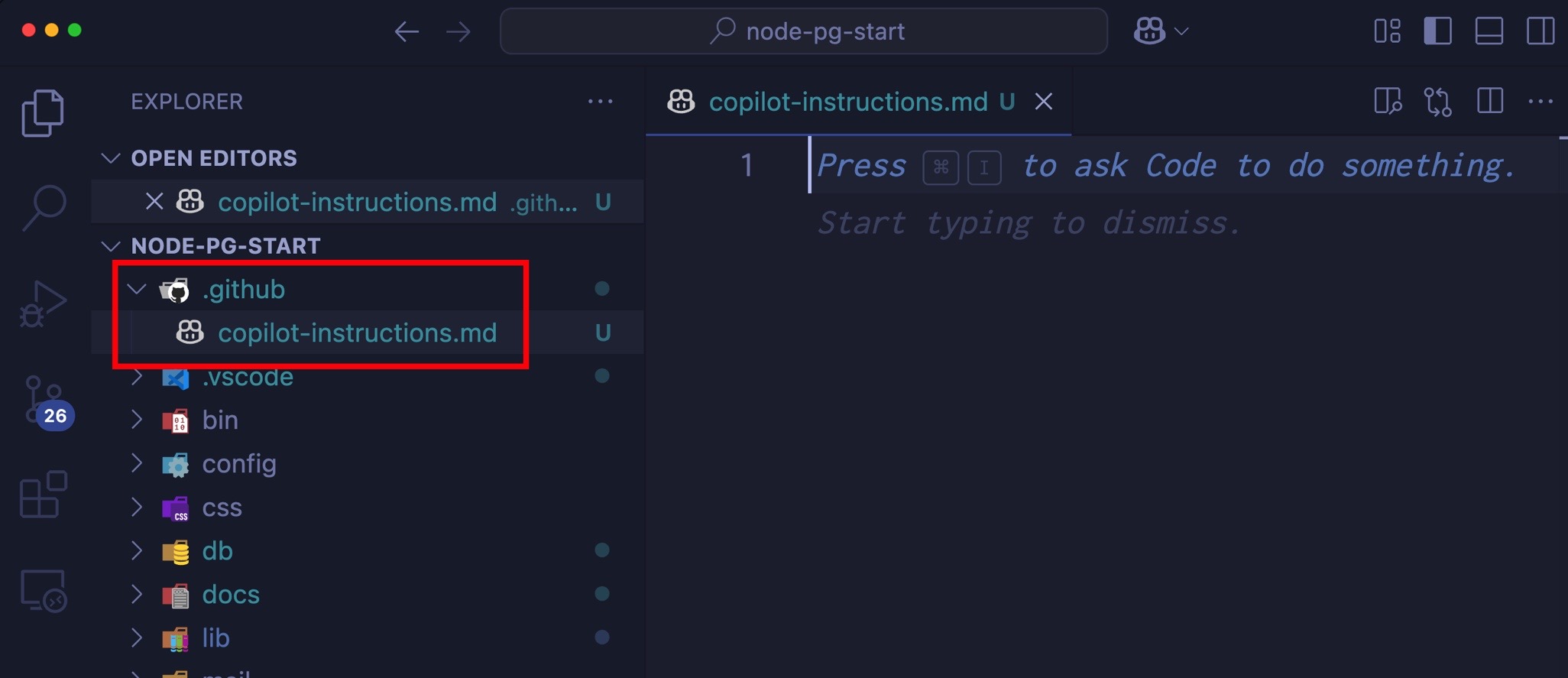
將這些指令新增到檔案中
# Copilot Instructions

This project is a web application that allows users to create and manage tasks. The application is built using React and Node.js, and it uses MongoDB as the database.

## Coding Standards

- Use camelCase for variable and function names.
- Use PascalCase for component names.
- Use single quotes for strings.
- Use 2 spaces for indentation.
- Use arrow functions for callbacks.
- Use async/await for asynchronous code.
- Use const for constants and let for variables that will be reassigned.
- Use destructuring for objects and arrays.
- Use template literals for strings that contain variables.
- Use the latest JavaScript features (ES6+) where possible.
標題不是嚴格必需的,但有助於明確檔案的目的。其餘內容是一系列指令,可幫助 Copilot 更好地理解您的專案。您可以自定義這些指令以適應您專案的需求。
現在,開啟 Chat 檢視,並使用一個非常簡潔的命令進行提示,例如 tail recursion。您無需詢問“如何在 JavaScript 中進行尾遞迴”或類似內容。只需鍵入 tail recursion 並按 Enter。請注意,Copilot 會理解您專案的上下文併為您提供相關的答案。
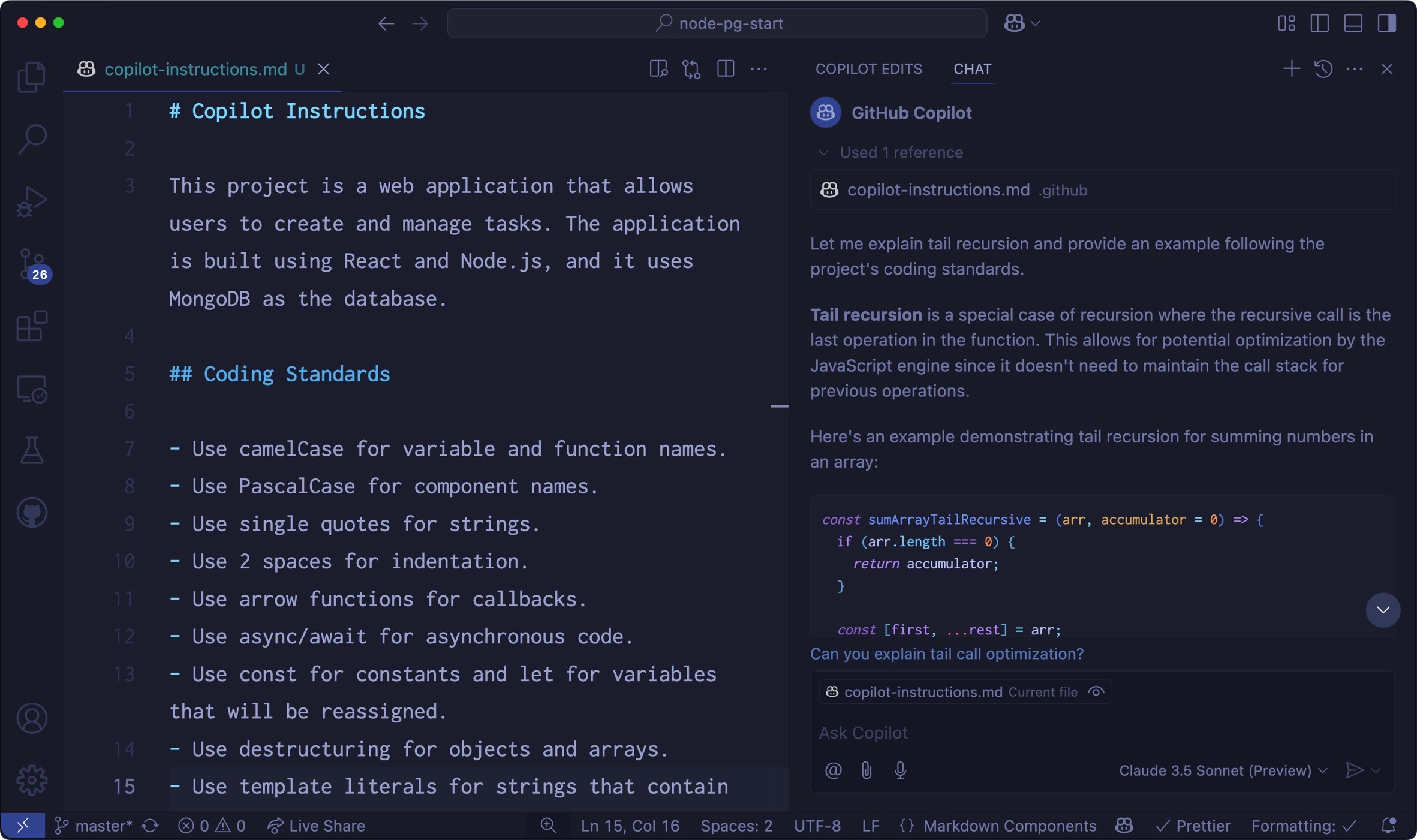
請注意,即使您使用了非常小的提示,Copilot 也給出了更詳細的答案,並且格式符合您的預期(2 個空格、駝峰命名法等)。
這就是使用自定義指令的強大之處!但您還可以做更多……
自定義一切!
GitHub Copilot 為 VS Code 增添了許多出色的功能,包括生成提交訊息、審查選定的程式碼,甚至生成測試!
這些功能都很有用,但很可能您有自己處理這些事情的方式。好訊息是,您可以透過覆蓋工作區中的一些設定來個性化它們。
試試這個:開啟命令面板(⇧⌘P (Windows、Linux Ctrl+Shift+P)),然後鍵入“workspace settings”一詞。您應該會看到一個選單選項,顯示 Preferences: Open Workspace Settings (JSON)。選擇該選項,並將以下設定新增到您的工作區:
{
  "github.copilot.chat.commitMessageGeneration.instructions": [
    {
      "text": "Be extremely detailed with the file changes and the reason for the change. Use lots of emojis."
    }
  ]
}
儲存 settings.json 檔案並關閉它。活動欄中的原始碼管理圖示現在應該表明您已更改檔案。如果您在沒有 Git 儲存庫的測試目錄中工作,則可以透過原始碼管理檢視直接建立一個。只需選擇 Initialize Repository 按鈕並按照說明操作。
有趣的事情來了:開啟原始碼管理檢視,然後在提交訊息輸入欄位中選擇閃光圖示。這指示 Copilot 為您生成提交訊息。請注意,它生成的提交訊息非常詳細,並且使用了大量表情符號!
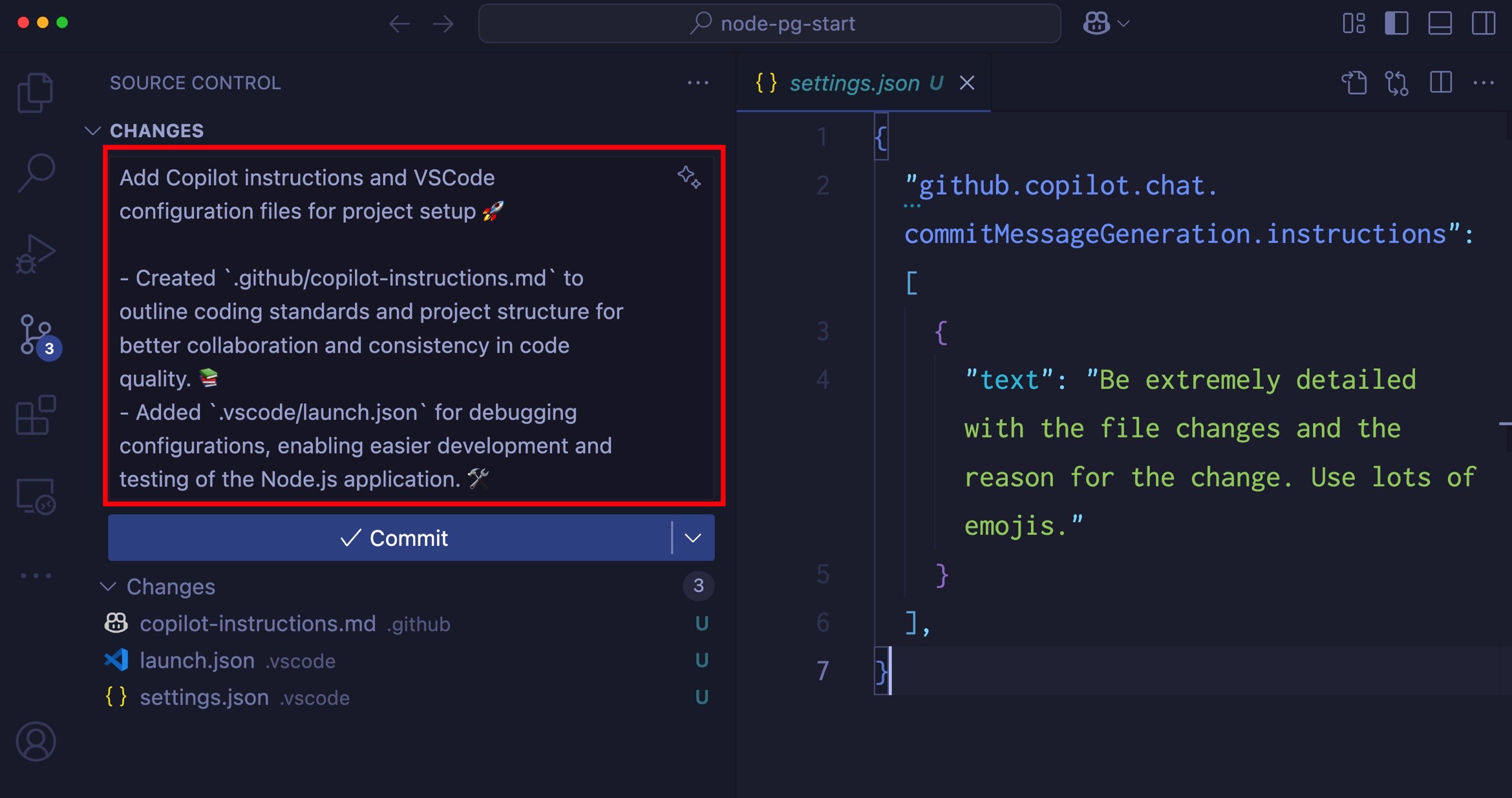
註釋掉 settings.json 檔案中的指令,然後再次生成提交訊息。您應該會看到一條細節少得多且不使用任何表情符號的提交訊息。
編寫良好、詳細的提交訊息是一項需要時間來學習的技能。但有了 Copilot,您可以節省大量時間,並獲得更好的訊息。
全力投入自定義指令
您可能將編碼標準儲存在單獨的檔案中,其格式與 Markdown 不同。也許您有一個用於 JavaScript,一個用於 Python,一個用於 Go。您還可能有關於如何處理資料庫的標準——您使用的資料型別、命名約定、連線字串處理等。
您不必將所有這些合併到一個檔案中。您可以將它們分開,仍然可以使用 Copilot 幫助您處理所有這些!
讓我們試試!開啟您的 .vscode/settings.json 檔案(工作區設定),然後新增以下設定:
{
  "github.copilot.chat.codeGeneration.instructions": [
    {
      "file": "./docs/javascript-styles.md"
    },
    {
      "file": "./docs/database-styles.md"
    }
  ]
}
這會指示 Copilot 在 docs 目錄中查詢兩個檔案:javascript-styles.md 和 database-styles.md。您可以新增任意數量的檔案,Copilot 會按照您指定的順序查詢它們。
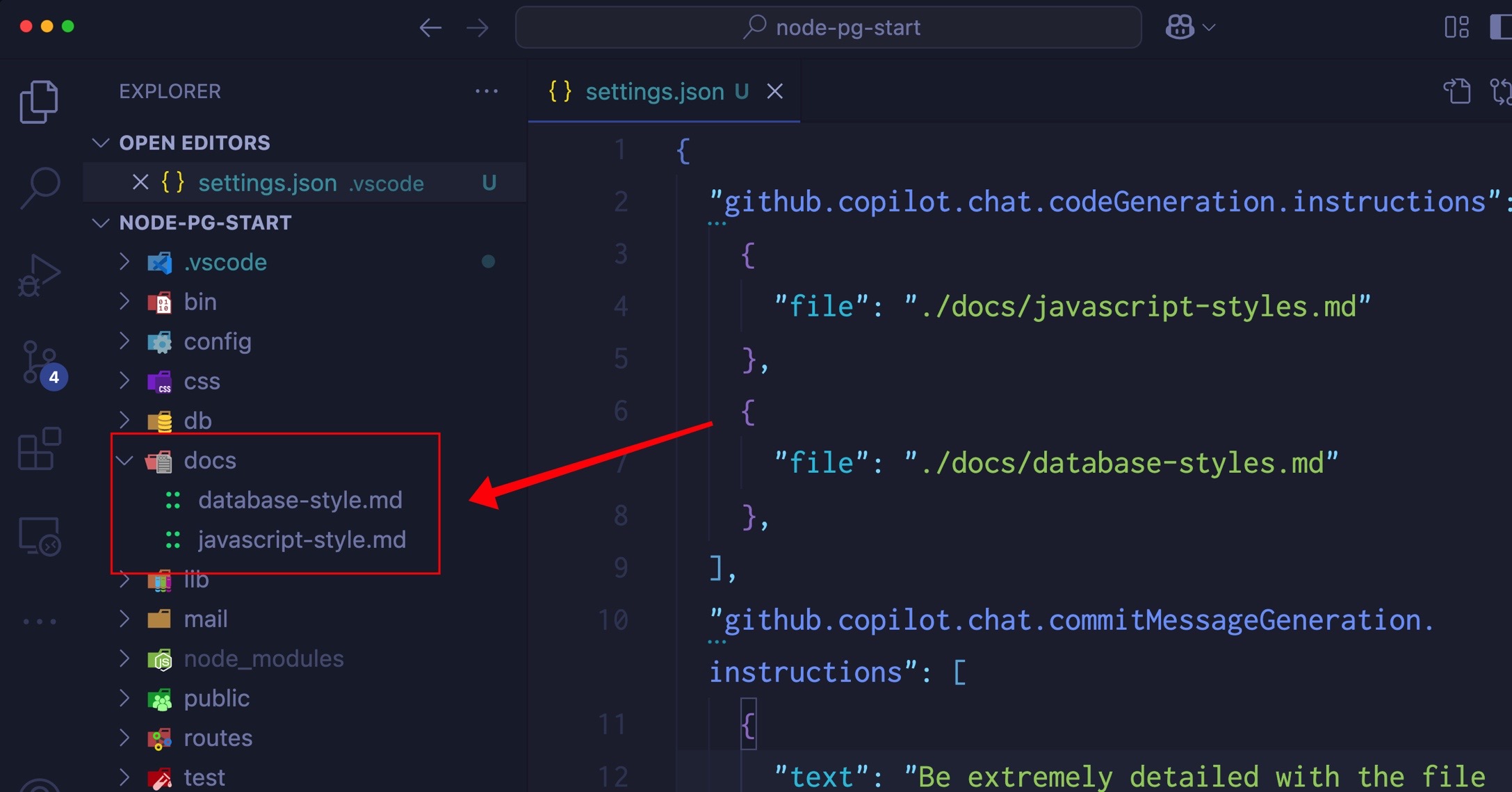
您可以在此處新增您想要的任何檔案,包括當前衝刺的規範。我們甚至見過有人將 Gherkin 規範新增為自定義指令!
試試看!
更改模型語氣
模型往往過於禮貌。它們經常道歉,如果您告訴它們某事是錯誤的,它們幾乎從不堅持自己和它們做出的決定。當您需要完成工作時,這會很煩人。您可以透過一些指令來覆蓋模型過於樂於助人的語氣,指導它們如何響應。
- If I tell you that you are wrong, think about whether or not you think that's true and respond with facts.
- Avoid apologizing or making conciliatory statements.
- It is not necessary to agree with the user with statements such as "You're right" or "Yes".
- Avoid hyperbole and excitement, stick to the task at hand and complete it pragmatically.
始終以肯定的方式向模型提供指令,而不是否定方式,這一點很重要,因為它們需要知道該做什麼,而不是不該做什麼。與其說“不要這樣做”,不如說“避免”。
進行實驗並享受樂趣!一位程式設計師報告說,他們喜歡透過以俳句形式生成測試來活躍他們的測試套件。這似乎有點極端,但如果您在處理一個愛好專案,為什麼不呢?您可以新增類似以下的指令:
- Generate tests in haiku format.
- Use 5-7-5 syllable structure.
- Use nature themes and imagery.
還有一件事……
GitHub Copilot 也可以理解程式碼檔案作為自定義指令!例如,如果您有一個 SQL 檔案,您可以將其新增到您的設定中,Copilot 將使用它來幫助生成您的資料訪問程式碼。
如果您喜歡某個特定的資料訪問工具,可以將其新增到您的專案中,Copilot 在生成資料訪問程式碼時將使用該工具。
試試看!這是我們的一位團隊成員用來為 PostgreSQL 資料庫生成 Sequelize 模型(Node.js ORM)的示例:
//Template for a Sequelize model
const { DataTypes, Model } = require('sequelize');
class User extends Model {
  //static or factory methods
  //instance methods
}
const init = function(sequelize){
  User.init({
    //schema goes here
  }, {
    hooks: {},
    tableName: "users"
    underscored: true,
    sequelize
  })
}

exports.createUser = function(sequelize){
  init(sequelize);
  return User;
}
在您的設定中引用此檔案,GitHub Copilot 將使用此模板以及您的 SQL 檔案來為您生成專案中的模型。您可以在“編輯”模式或“提問”模式下執行此操作。只需使用提示 generate the data access for the project,然後就大功告成了!
隆重推出提示檔案
提示檔案允許您為您和您的團隊組合可重用的提示。這有助於強制執行一致性,同時減少提示的繁瑣工作。
例如,假設您想建立一個可重用的提示,該提示可以根據資料庫架構建立介面。您可以建立一個包含資料庫架構的提示檔案。Copilot 非常樂意為您生成一個 SQL 指令碼來完成此操作。
提示檔案位於 .github/prompts 目錄中,並且只是名稱格式為 *.prompt.md 的 Markdown 檔案。
您可能有一個 .github/prompts/database_users.prompt.md 檔案,其中包含資料庫的描述。例如:
# User Authentication

Our application will have `users` with the following information:

- The standard user information, including: `name`, `email` (unique).
- A link for a "magic" login, which will be a `GUID` as well as the expiration date for the link.
- Social login account IDs for Microsoft, GitHub, and Google.
- The timestamp of the last login.
- The timestamp for when the user was created.
然後,您可以建立另一個名為 generate-interface.prompt.md 的提示檔案,其中包含生成介面的指令。提示檔案可以相互引用,因此您可以將資料庫架構作為簡單的 Markdown 連結傳遞到此提示檔案中。
Generate a TypeScript interface for the table specified by the user. Refer to the [user schema](database_users.prompt.md).
要在聊天中使用這些提示檔案,請使用附件按鈕(回形針)或使用 。從選單中選擇 Prompts,然後選擇您要使用的提示檔案。請注意,當我使用 generate-interface.prompt.md 檔案時,它會自動引入 database_users.prompt.md 檔案。

結論
VS Code 是一個可自定義的助手,經過適當配置後,它可以成為團隊工作流程中不可或缺的一部分。透過自定義指令,控制權掌握在開發人員手中。
編碼愉快!